
Mobile companion
Pair the Orca mobile app to your desktop to monitor agents and unstick worktrees from your phone.
The Orca mobile companion is an iOS/Android app that pairs with your desktop Orca and gives you a read-mostly view of running agents — agent status, recent terminal scrollback, and the controls you actually want from a phone (replying to a prompt, sleeping a worktree, reviewing source control, switching agent accounts). Pairing is one-time and the desktop is always the source of truth.
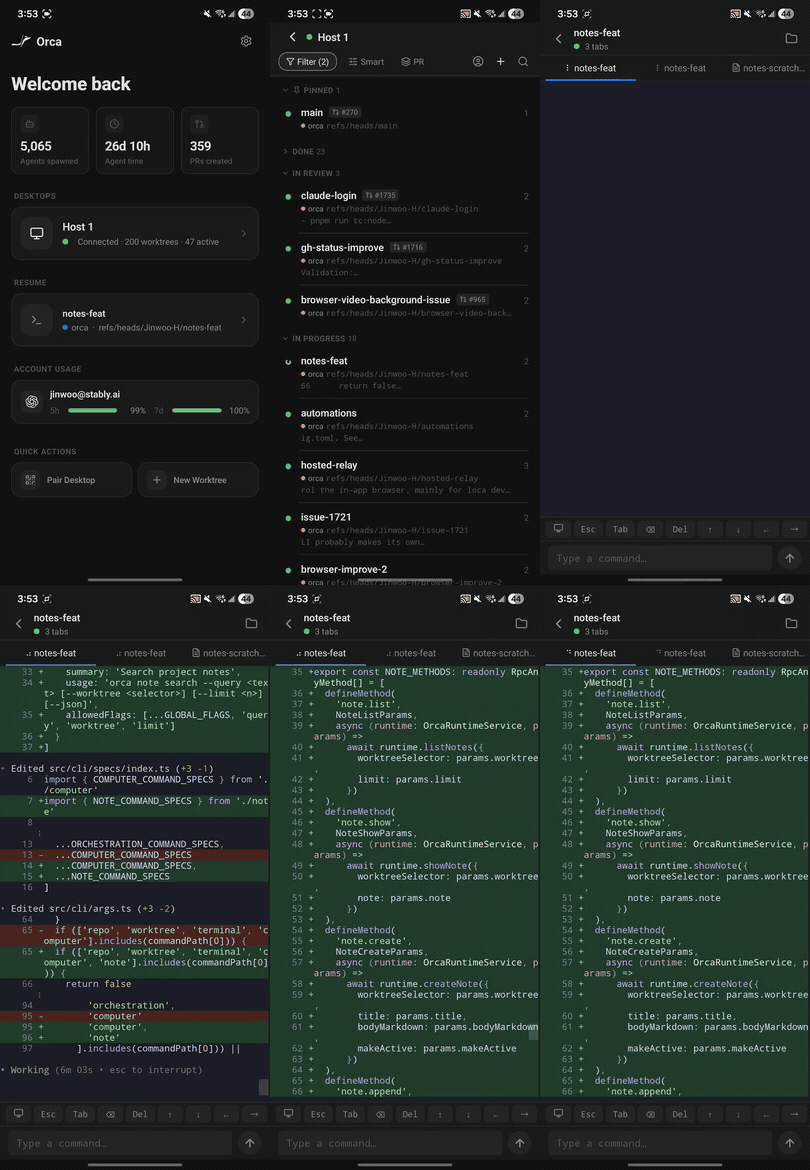
What you can do from mobile
- See every worktree, its agent, and its current status (working / done / waiting on input).
- Hydrate recent terminal scrollback so you can read what an agent did or asked.
- Select, copy, and paste text from the mobile terminal view — long-press to select, share-sheet to paste back into a reply.
- Use the terminal accessory row for keys that are awkward on a phone keyboard, including
TabandShift+Tab, or switch to Live when you need each typed character sent straight to the active terminal. - Send a short reply (
continue,yes, free-text) when an agent is waiting on input, or tap the microphone to dictate a response. - Open a browser session in Web or Mobile view when you need to check a responsive page from your phone.
- Open Source Control for a worktree to review changed files, stage or unstage, and commit from your phone.
- Switch your active agent account and see usage / rate-limit state on the go.
- Get push notifications when an agent finishes, mirroring desktop notifications.
The mobile app is intentionally not a full editor — it's a remote control for the desktop you already have running.
Pairing
- On desktop, open Orca's pairing flow from the account / status menu. Orca shows a one-time pairing code.
- On mobile, open the Orca companion app and choose Pair, then paste the code. (You can also follow a deep link from the desktop directly into the mobile pairing screen.)
- The pairing exchange happens directly between desktop and phone; Orca uses the resulting device token for that paired phone.
Closing the desktop app drops the connection — there is no cloud relay. Reopen the desktop and the phone reconnects automatically.
Account switcher
The mobile app exposes the same account switcher as the desktop status bar, including inline usage for inactive accounts. Switching here switches on the paired desktop.
Source control on mobile
From a worktree session, tap the branch icon to open Source Control. Use it for small follow-ups: check the branch state, inspect changed paths, stage or unstage files, and commit once the staged set is ready. If the branch already has a GitHub pull request, use Link an existing PR from the empty PR state to attach it instead of creating a new one.
Browser view on mobile
The mobile browser pane has a Web / Mobile switch. Use Web to see the normal page and Mobile to ask the paired desktop browser for a phone-sized responsive viewport.
Terminal settings
The mobile terminal has a dedicated Terminal settings screen (Settings → Terminal):
- Text size — a 50%–200% baseline zoom the WebView applies on top of fit-to-width. Pinch-to-zoom in the terminal snaps to the same presets and persists. The setting is per-device and doesn't change the desktop terminal.
- Autocomplete & autocorrect — off by default so the OS never rewrites commands, flags, or paths in the command bar. Turn it on for phone-style typing; the live keyboard-capture input still streams raw keystrokes either way.
Troubleshooting
- Stuck spinner on a worktree — the phone tracks a heartbeat from the desktop agent process. If the desktop says idle but the phone shows working, force-refresh the worktree row to sync state.
- Pairing fails — make sure your desktop and phone are signed into the same Orca account. Pairing codes expire after a few minutes; generate a fresh one if it's been sitting on the screen.