
Orca CLI overview
Use the Orca CLI to script Orca from a terminal, manage worktrees, control agent terminals, automate the built-in browser, and install agent skills.
The Orca CLI is the orca command-line interface for scripting a running Orca editor from any shell. Use it to create and inspect worktrees, drive agent terminals, open files and diffs, automate the built-in browser, run scheduled automations, and control Orca-native tools from scripts or AI agents.
It ships with the desktop app; register it under Settings → Experimental → CLI.
Agents can install the matching Orca CLI skill with:
npx skills add https://github.com/stablyai/orca --skill orca-cliSee Skills registry & MCP for every installable Orca skill.
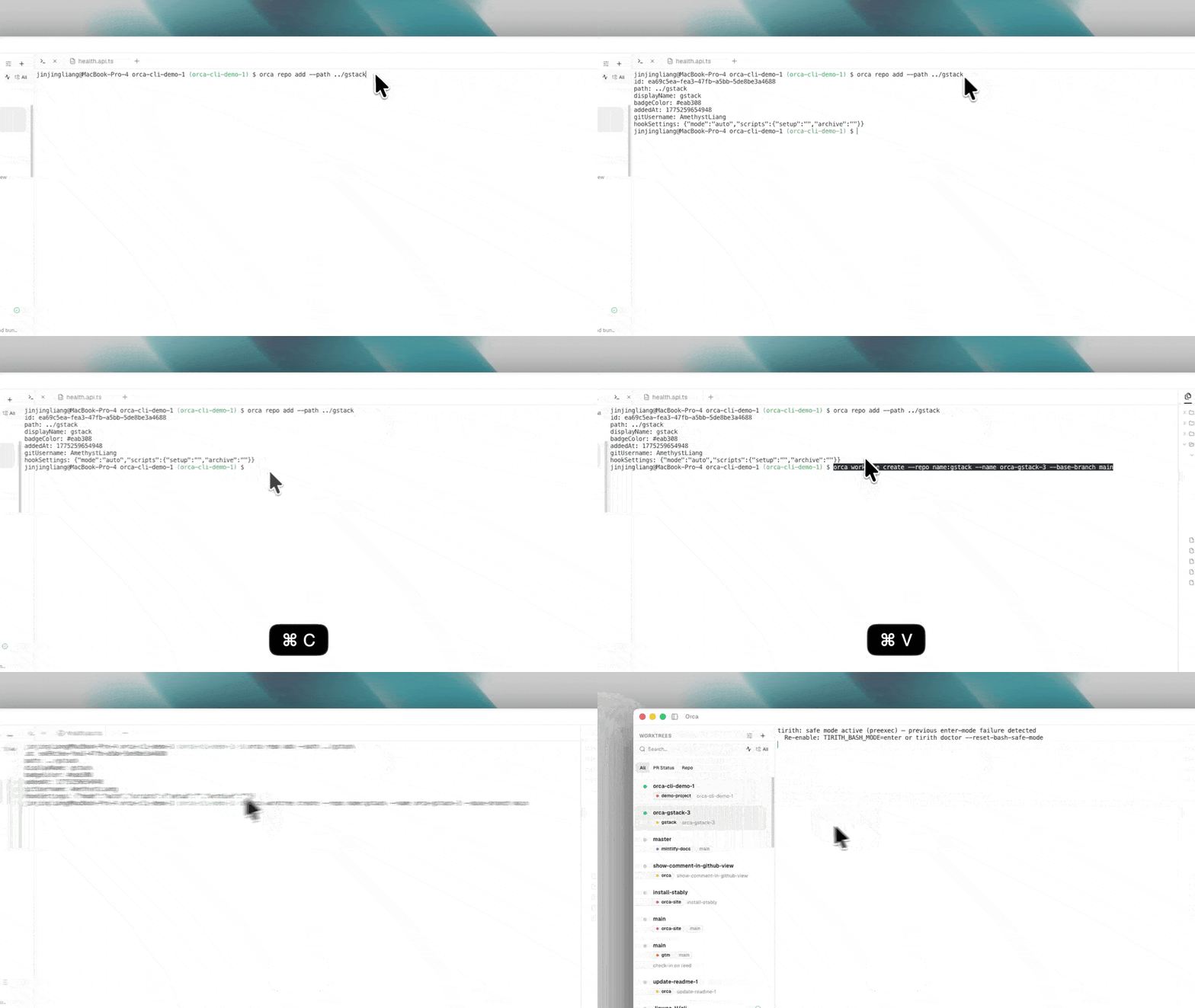
Install & verify
command -v orca
orca status --json
Worktree commands
orca worktree ps --json
orca worktree create --repo id:<repoId> --name my-task --issue 123 --json
orca worktree current --json
orca worktree set --worktree active --comment "reproduced bug" --json
orca worktree rm --worktree id:<id> --force --json
For selectors, setup flags, parent/child worktrees, and the broader command map, see Orca CLI reference.
Terminal commands
orca terminal list --json
orca terminal read --json
orca terminal send --text "continue" --enter --json
orca terminal wait --for tui-idle --timeout-ms 30000 --json
orca terminal create --worktree path:/projects/app --command "npm test" --json
orca terminal split --direction vertical --command "npm run dev" --json
For tracked multi-agent work, use Orchestration instead of plain terminal prompts.
File commands
Open files and diffs in the active Orca worktree from a shell:
orca file open src/App.tsx
orca file diff src/App.tsx --staged
orca file open-changed --mode both
Use --worktree <selector> when the shell's current directory is not inside the target worktree.
Browser profiles
Browser profiles isolate tab session state, so a script or agent can test with different cookies, local storage, and logged-in identities. The CLI exposes profile commands under orca tab profile; start with orca tab profile list --json, then use create, set, clone, or use-default as needed.
Scheduled automations
Use orca automations to create, inspect, run, and remove scheduled Orca tasks from a shell. Start with Scheduled automations when you want a recurring prompt to run against a repo or an existing worktree.
Browser automation
The CLI also drives the built-in browser with a snapshot-interact-re-snapshot loop:
orca goto --url https://example.com --json
orca snapshot --json     # returns refs like @e1, @e3
orca click --element @e3 --json
orca fill --element @e1 --value "user@example.com" --json
orca screenshot --json
For responsive browser checks, switch the active tab to a named device profile:
orca set device --name "iPhone 12" --json
orca screenshot --json
Mobile emulator
The CLI can also drive an iOS Simulator through Orca's mobile emulator bridge. It is scoped to the active worktree, so agents and scripts can attach a simulator from orca emulator list, tap normalized coordinates, type text, send gestures, rotate the device, and shut it down without leaving Orca.
orca emulator list --json
orca emulator attach "<device-name-or-udid>" --json
orca emulator tap 0.5 0.7 --json
orca emulator type "hello" --json
orca emulator gesture '[{"type":"begin","x":0.5,"y":0.8},{"type":"move","x":0.5,"y":0.4},{"type":"end","x":0.5,"y":0.2}]' --json
orca emulator rotate landscape_left --json
orca emulator kill --json
Use --worktree <selector>, --device <udid-or-name>, or --emulator <id> when a script needs an explicit target.