
Your first 3-agent session
From empty app to three agents running in parallel in under five minutes.
This is the single most important page in the docs. By the end you'll have three agents running in parallel on three different approaches to the same task, with one PR shipped.
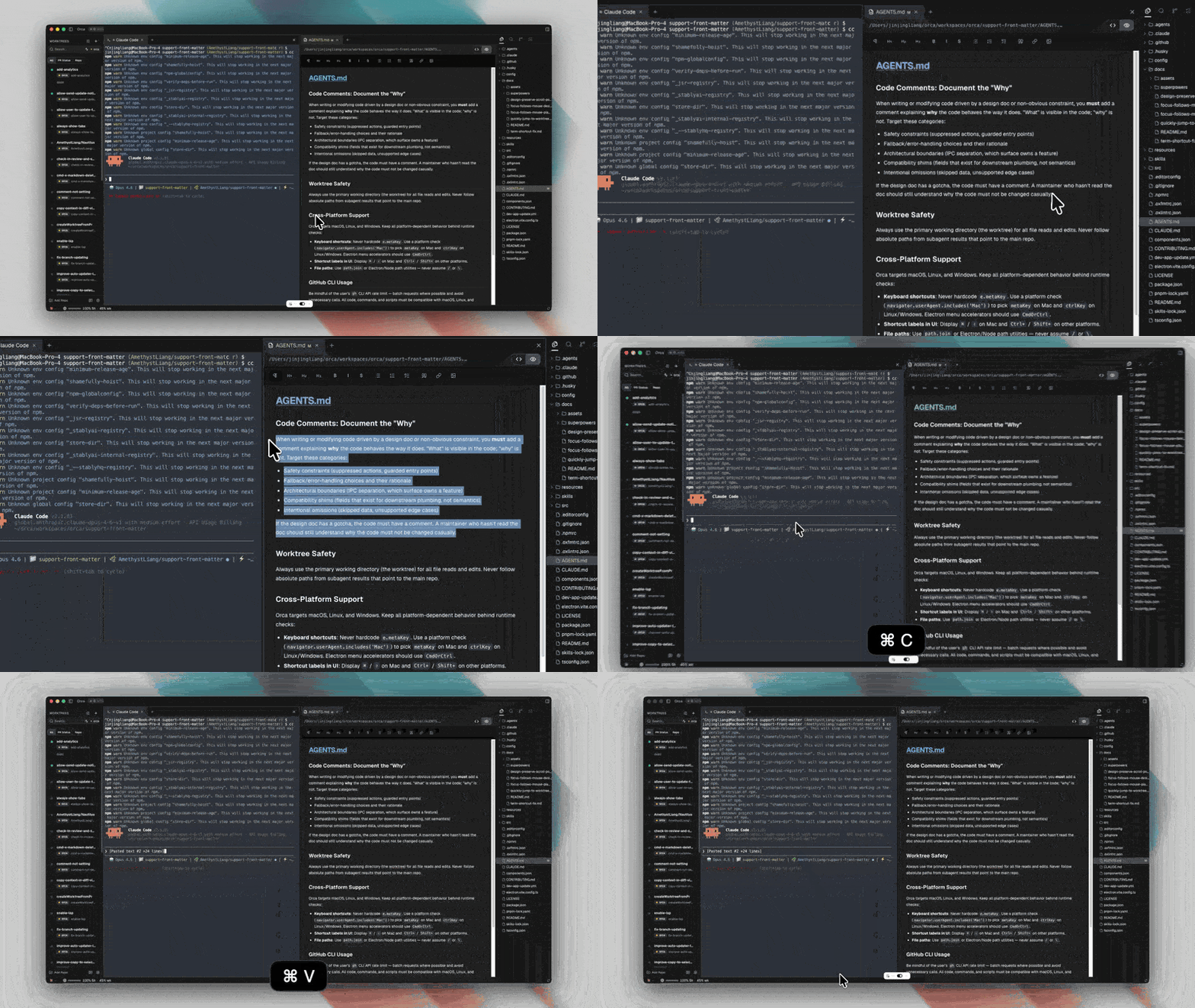
1. Add a repository
Click Add Repo on the sidebar and point Orca at a local checkout. Orca reads the repo's git state and picks up your default branch as its base ref — the ref every new worktree branches from.
You can change the base ref later under the repo's settings.
2. Create a worktree
Click the + next to the repo name. Type a task name ("fix-login-race" is fine — if you leave it blank, Orca names it after a marine creature).
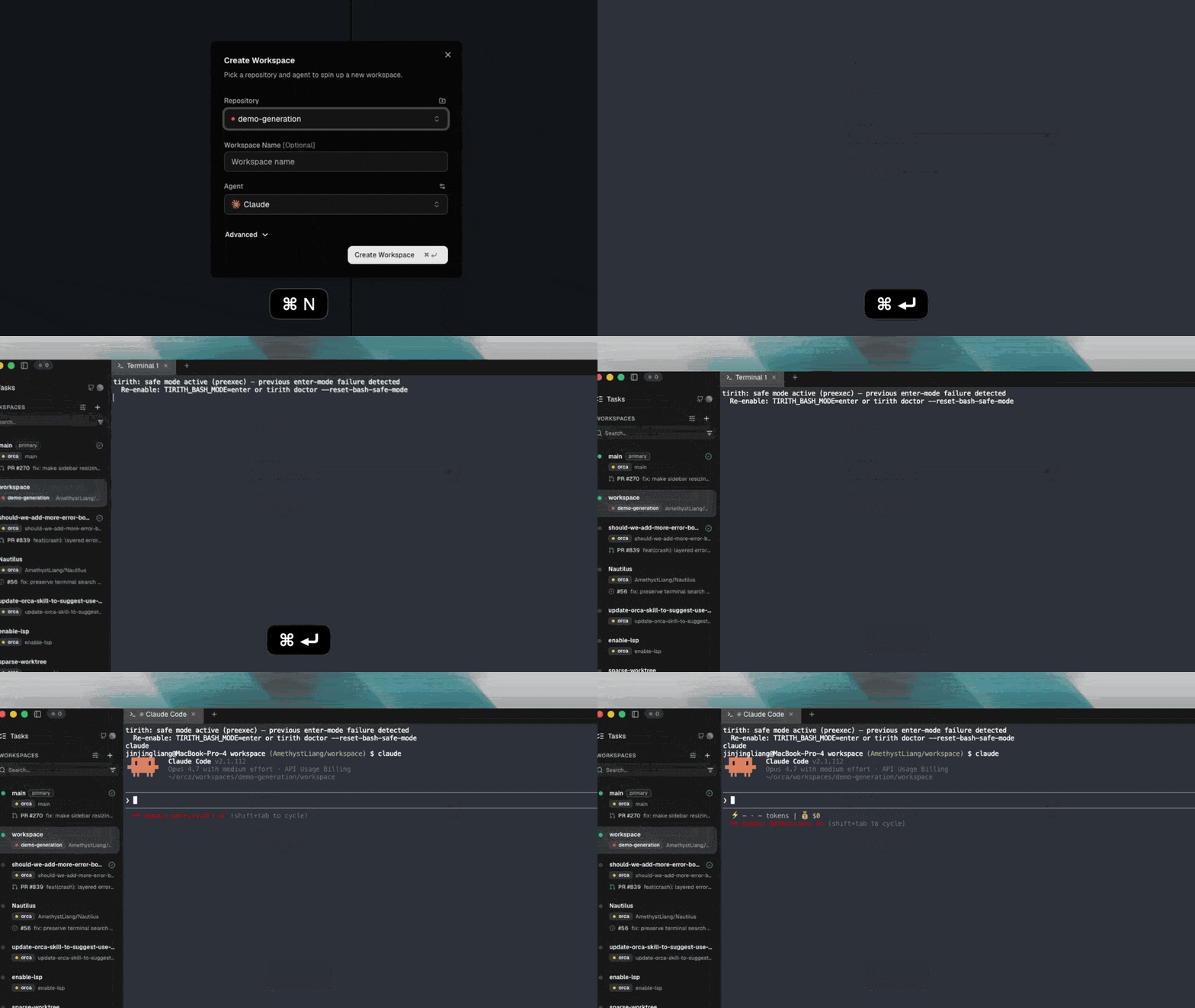
The launcher opens with your default agent preselected (configurable under Settings → Agents) or an empty terminal if you'd rather start cold. Pinned worktrees stand out in the sidebar so the ones you actually live in stay visible.
Pick a start-from ref. Most of the time this is your base ref (origin/main), but you can start from any branch or commit.
Orca creates a real git worktree under its managed directory, checks out the branch, and opens it.
3. Pick an agent
In the new worktree, a terminal opens with an agent combobox. Pick Claude Code, Codex, Cursor CLI, or any of the supported agents. Orca will launch the agent's CLI with the correct working directory and forward your subscription credentials.
4. Race three agents on the same task
Now repeat steps 2–3 twice more. You now have three worktrees:
fix-login-race→ Claude Codefix-login-race-2→ Codexfix-login-race-3→ Cursor CLI
Paste the same prompt into each. Three branches. Three diffs. Same prompt. Let them work.
5. Split panes so you can watch them all
Drag a worktree's tab to the right or bottom edge of a pane to split. You can watch all three agents at once. See Tabs, panes & split layouts.
6. Pick a winner, review the diff, ship it
Once agents settle, open each worktree's diff view. Use Annotate AI Diff to leave inline comments and send them back to whichever agent got closest.
Commit and push directly from Orca — see Commit & push from Orca. The other two worktrees can be deleted with one click; their branches go with them.